You're trying to help readers follow your WordPress updates, but the site still feels oddly closed off. The posts are there, the content is published, and yet a learner who wants to keep up can't see a clear subscription path. That's usually where RSS solves the problem.
For a WordPress learning site, how to set up RSS feeds is less about building something new and more about making what already exists easy to find, trust, and use. WordPress usually exposes feeds through standard endpoints, and RSS readers can pull updates automatically once the feed URL is discovered and subscribed to, as described in Microsoft Support's RSS guidance and the U.S. Bureau of Labor Statistics help page. If you've ever wondered why some sites feel easy to follow while others disappear into the noise, the difference is often whether the feed is visible, valid, and stable.
Table of Contents
- Why RSS Still Matters for Learning Sites
- Locating Your Default WordPress Feed Endpoints
- Making Your Feed Discoverable to Readers
- When to Build Custom Feeds Beyond the Default
- Validating and Troubleshooting Your Feed Setup
- Maintaining Your Feeds for Long-Term Reliability
Why RSS Still Matters for Learning Sites
A student lands on a small WordPress blog, reads one helpful lesson, and wants the next update without checking back every day. If there's no obvious subscription link, that reader usually leaves and relies on memory, bookmarks, or a browser tab they'll forget to reopen. RSS avoids that friction because it gives people a direct, machine-readable way to follow new content without asking them to join a platform or hand over an email address.
That's the appeal for educational publishing. RSS works outside social media feeds, outside email inbox rules, and outside algorithmic sorting, so readers get the updates they asked for, in the reader they already use. The format has lasted because it was built for publishing headlines, dates, descriptions, and links in a way software can understand, which is why it still fits blogs, course notes, study logs, and reference pages so well.
Practical rule: if a learner needs to check your site more than once, give them a feed they can subscribe to.
RSS also suits small sites that publish occasionally. A lightweight learning blog doesn't need a complicated distribution stack to stay useful, it needs a reliable path from new post to subscriber. For a broader perspective on feed workflows in another publishing format, managing your podcast RSS shows the same basic principle, content should be easy to discover, subscribe to, and keep current.
Locating Your Default WordPress Feed Endpoints
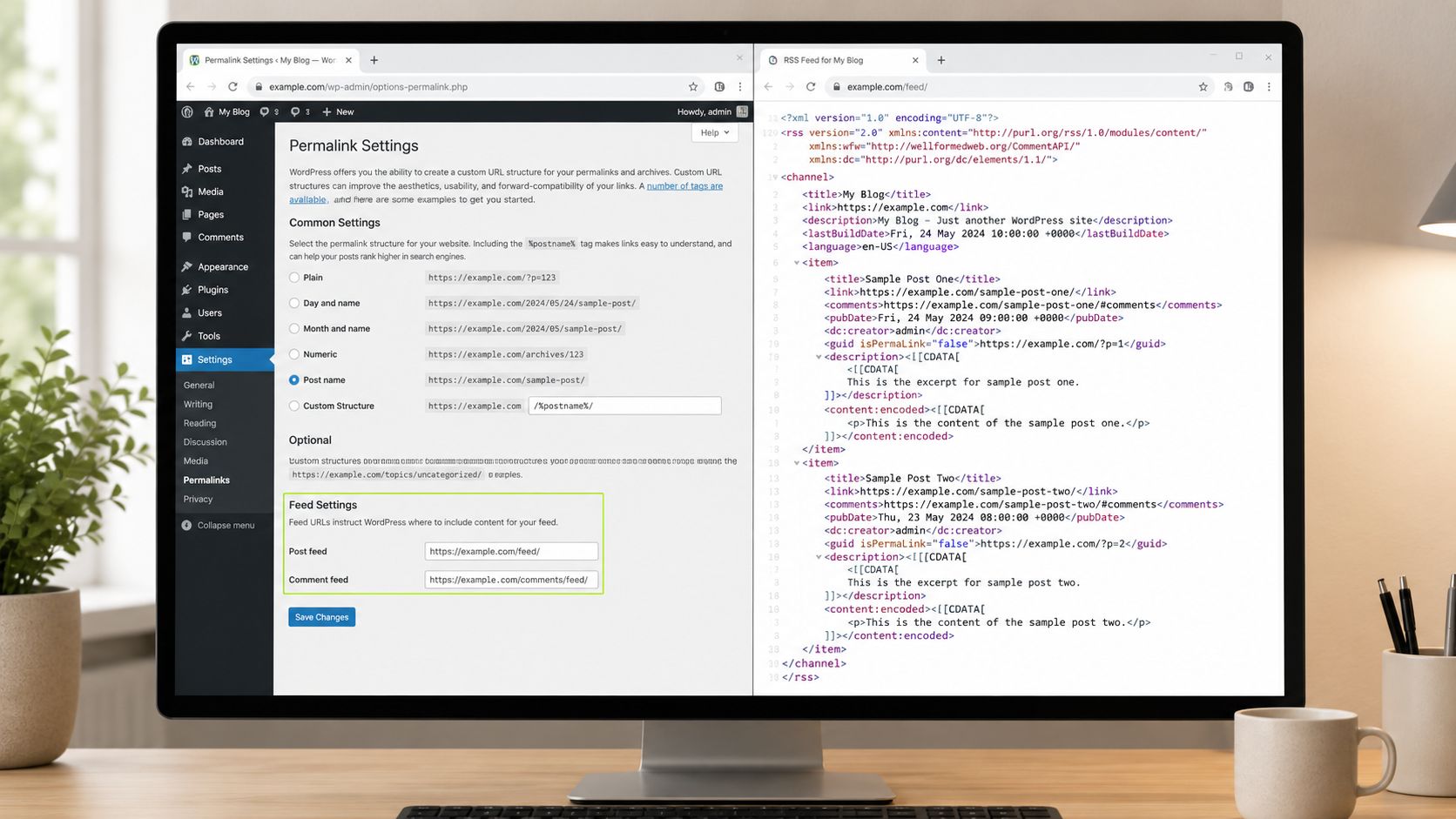
WordPress creates RSS endpoints automatically, so the first task is finding the ones your site already has. On most sites, adding /feed/ to the end of the site URL reveals the main post feed, and /comments/feed/ opens the comments feed. That gives a basic blog a working RSS path without custom development, which is why WordPress is often the easiest place to start.
Check the feed in a browser first
Start with your main site address, then add /feed/. If the endpoint is working, the browser should show XML instead of a normal page layout, and that XML should include titles, publication dates, descriptions, and links. RSS readers rely on those fields to keep headlines current, so the feed has to be structured cleanly before it can be trusted by subscribers.
A simple browser check catches a lot of beginner mistakes. Publish or edit a post, refresh the feed, and confirm that the newest entry appears at the top. If it does, the endpoint is live and the publication flow is connected correctly.
Use the comments feed if discussion matters
A comments feed is easy to miss on small learning sites, but it matters when readers are asking follow-up questions or discussing lessons in the comments. The endpoint pattern is usually predictable, so it is worth checking whether your theme and discussion settings expose it in a clear way.
A quick test is enough at this stage:
- Open the feed URL in a browser. You should see XML, not a broken page or a theme layout.
- Look for recent content. The newest post should appear near the top.
- Confirm the date and link fields. Those are basic signs that the feed can be read by subscribers and aggregators.
- Refresh after posting a new entry. The feed should update without manual edits.
If any of that fails, do not assume RSS is broken across the whole site. The issue is often a malformed permalink, an inaccessible URL, or a theme setting that needs another look.
Making Your Feed Discoverable to Readers
A working feed URL doesn't help if nobody can find it. Many tutorials stop at “add /feed/,” but a beginner reader usually doesn't type that path from memory. They look for a visible RSS link, a recognizable icon, or automatic feed discovery in their browser or reader.
Put the feed where people already look
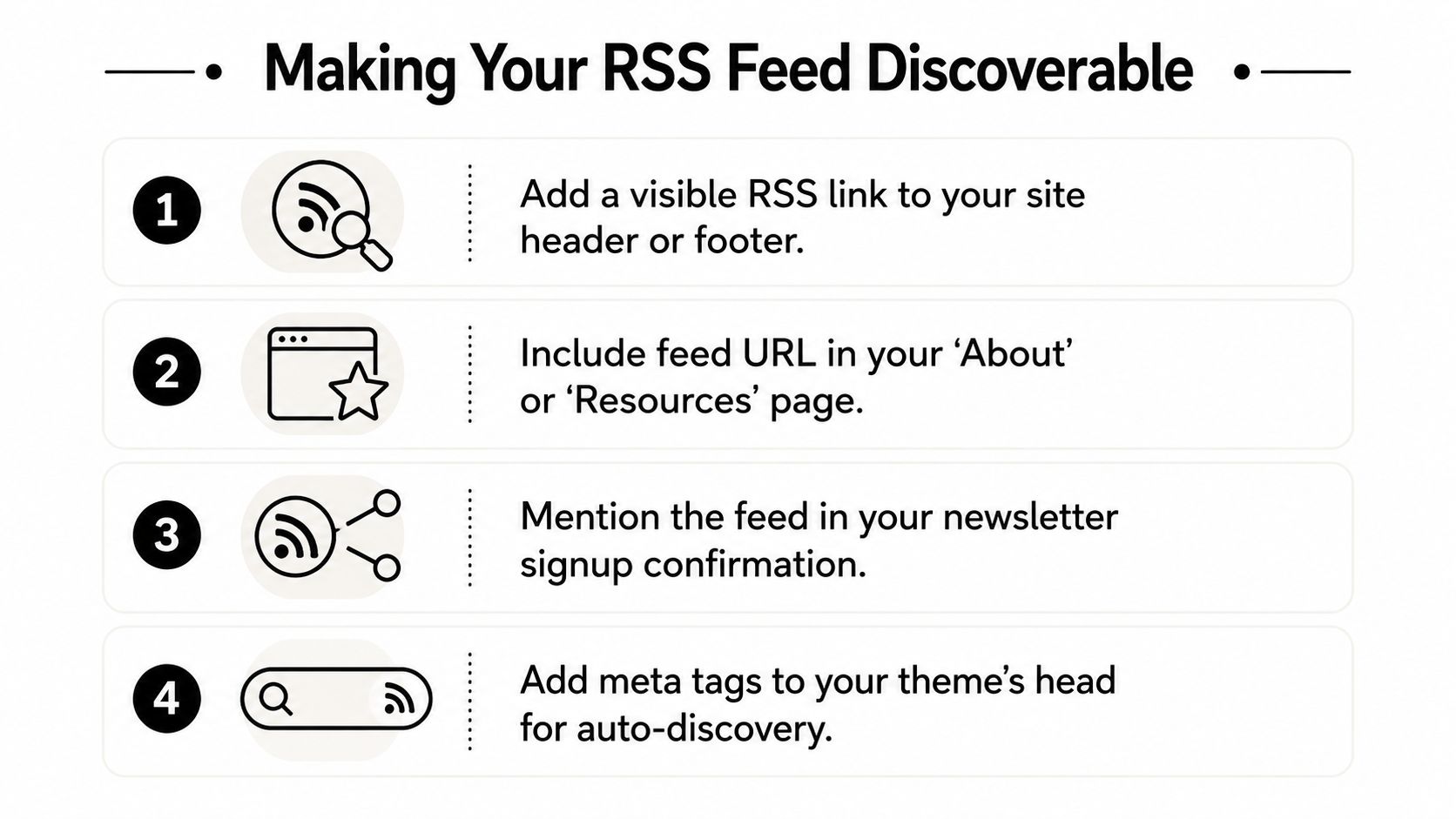
The simplest placement is a visible link in the header, footer, sidebar, or navigation menu. On block themes, that can be a short text link labeled RSS, Subscribe, or Latest Updates, depending on how much space you have. A small icon can help, but text is often clearer for first-time visitors who don't recognize the symbol.
Page headers matter too. Independent guidance on RSS best practices recommends advertising feed metadata with <link rel=alternate ... type=application/atom+xml> so browsers, readers, and search tools can find the feed automatically, and that's especially useful when you want subscription to happen without extra hunting. That same guidance also stresses keeping feed URLs stable and handling redirects carefully when URLs change, which protects trust when you rename sections or move content around, as described by Kevin Cox's RSS feed best practices.
Feed discovery should feel boring. If readers have to guess, the setup isn't finished.
Make the subscription path obvious
A feed can also be surfaced in places that look nontechnical. Add the feed URL to an About or Resources page, mention it in a newsletter confirmation message, and include it in any area where a reader expects to find ways to follow you. That helps because some people discover RSS through search, while others notice it only after they've already decided they want future updates.
The goal is not decoration. The goal is to make the right URL visible in more than one place so a reader, browser extension, or feed reader can find it without special instructions.
When to Build Custom Feeds Beyond the Default
A default WordPress feed usually does enough for a learning site that publishes lessons, notes, or announcements. It updates on its own, works with standard readers, and avoids the extra upkeep that comes with custom XML. If your site has one clear stream of updates, the built-in feed is usually the cleanest choice.
Choose the default feed when the content is simple
The default feed fits a site with one main blog, one audience, and one primary update path. It also suits small teams that do not want to manage extra code or keep another file in sync every time something changes.
That simplicity matters for beginners. A default feed is easier to explain, easier to test, and easier to trust because WordPress handles the structure for you.
A custom feed starts to make sense when the publishing setup becomes more complicated. That can happen if a site runs multiple content types, needs to leave out specific categories, or wants a feed formatted for a particular platform.
Use custom XML only when the default stops fitting
Custom XML only earns its place when the default feed no longer matches what readers should receive. The usual workflow is straightforward, create the XML with the required channel and item fields, host it on a web server, and validate it before you share the URL. The core pieces are title, link, and description, followed by item-level fields such as publication date, summary, author, and optional image elements that help different readers display the feed correctly.
That extra work makes sense when the audience needs a filtered or structured stream. It does not make sense just because a custom feed feels more advanced. A simple rule helps here, if you cannot explain how the custom feed helps a reader, keep the default feed for now.
Decision point: if you cannot explain why a custom feed helps a reader, you probably do not need one yet.
Custom feeds also add more chances for things to break, including structural XML errors, missing elements, or broken links. For a new site, the default WordPress feed is often the better teaching tool because it gives you a stable baseline before you add more complexity.
Validating and Troubleshooting Your Feed Setup
A feed can look fine in a browser and still fail inside a reader. That gap is easy to miss on a small learning site, where the URL exists but subscribers still need a feed that opens, refreshes, and feels reliable. Validate the XML before you share it, then fix the source if anything breaks.
Test the XML, not just the page
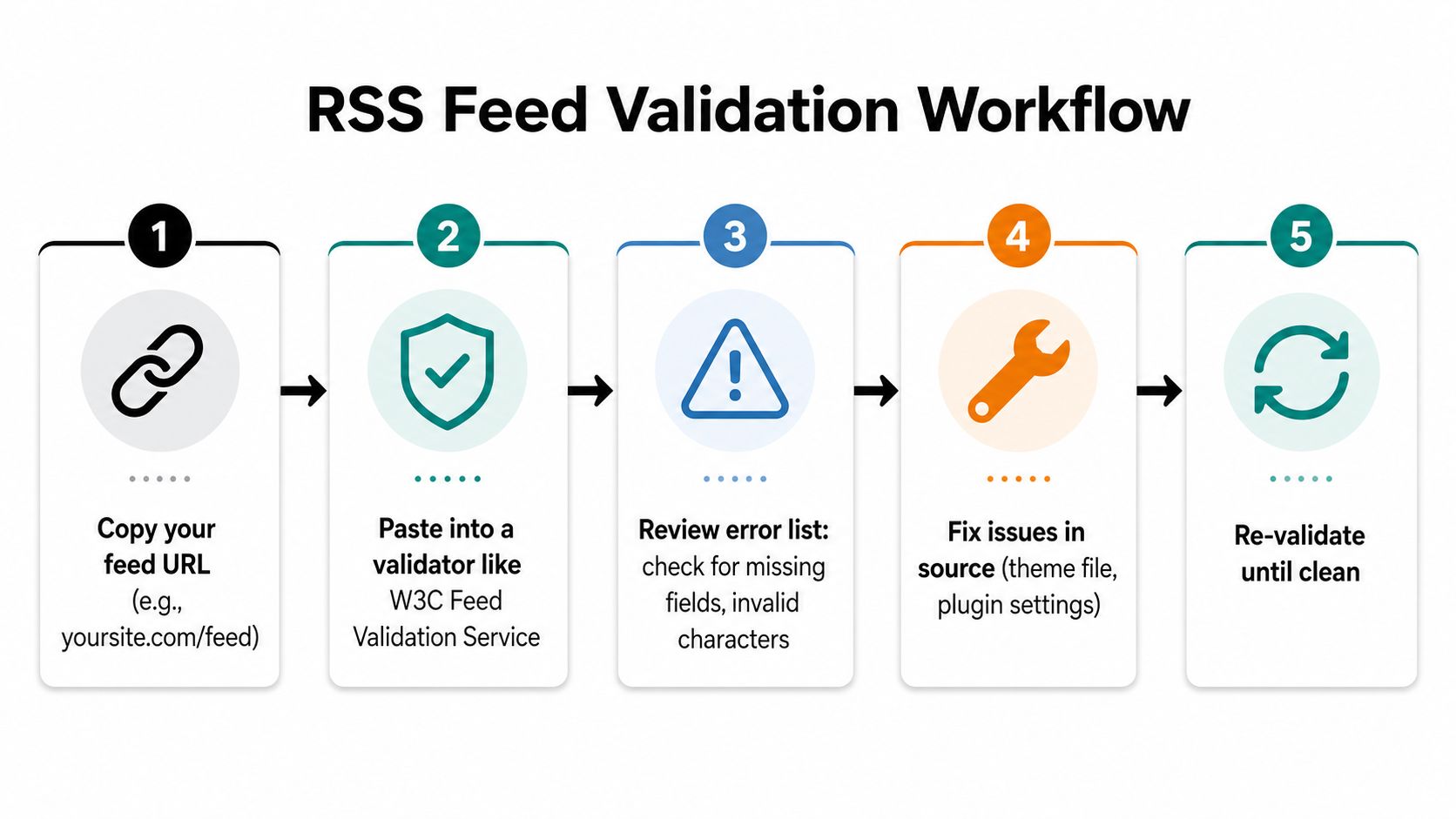
Use a feed validator to check that the XML matches RSS rules before you hand out the link. Independent setup guidance recommends this first pass because malformed XML, missing required elements, and unreachable URLs are common points of failure, as noted in WPRSS Aggregator's setup guidance.
A browser view only tells you that the page opens. It does not tell you whether a reader can parse the feed structure correctly. Once the validator passes, open the feed in more than one reader so you can see whether the metadata displays the way you expect across different apps.
Fix the source, then test again
If the validator shows errors, correct the source that generates the feed. That source may be a theme file, a plugin setting, or a URL that is exposed in the wrong way. After the fix, run the validation again until the feed comes back clean.
A few problems show up often, and each one points to a different kind of break:
- Malformed XML. One bad character can stop a reader from parsing the feed.
- Missing fields. If core channel or item data is absent, some apps will not subscribe cleanly.
- Inaccessible URL. If the feed cannot be reached, readers cannot refresh it.
- Stale content. If new posts do not appear, the publishing flow needs another check.
Trust matters here. If readers subscribe to a feed that breaks on day one, they may not return. Feed checks belong alongside the broader maintenance work described in Refact insights on WordPress upkeep, because feed reliability depends on the health of the site that produces it.
Maintaining Your Feeds for Long-Term Reliability
RSS setup doesn't end once the feed works. A feed is part of your site's publishing plumbing, so it needs the same kind of upkeep you'd give navigation links, page slugs, or comments. Stable URLs matter, and if you change structure later, redirects and preserved self-links help subscribers keep getting updates without interruption.
Keep the feed URL stable
That stability matters because readers and aggregators store the feed address. If you move it without a plan, you create a broken subscription path even though the content itself is still live. The practical habit is to keep the original URL where possible and treat feed changes like any other site migration task.
Treat RSS as part of website maintenance
Maintenance advice for WordPress sites usually covers updates, backups, and health checks, and feed hygiene belongs in that same list. Refact's WordPress upkeep insights fit well here because feed reliability depends on the broader health of the site, not just the XML file itself.
RSS also fits into automation habits now. People sort feeds into categories, connect them to notification tools, and use them as a lightweight distribution layer rather than only a display widget. That means a feed should stay current, stay discoverable, and stay easy to subscribe to after the first launch.
Preserve the old URL when you can. Subscribers remember less than your server does.
If you're managing a learning site, a sensible routine is to check the feed after major theme changes, content migrations, or menu edits. That keeps the subscription path intact and prevents a small technical change from becoming a quiet access problem.
If you want a simple WordPress setup that keeps learning content easy to follow, try applying these steps to your own site today. Learning Site offers a practical example of a lightweight WordPress blog with RSS already in place, so you can see how discovery, subscription, and long-term reliability fit together on a real learning site. Visit Learning Site and compare your own feed setup against a clean, beginner-friendly model.
Prepared with the Outrank tool